For creators
Find your social username
Find the account username or profile ID to enter during TwoMojo creator setup.
Use your account username, rather than your display name. TwoMojo builds the
public profile link for you. You can also paste your full profile link,
starting with https://. Remove anything from ? onwards: share links often add
tracking text that TwoMojo won’t accept. Short share links and mobile-site links
(such as m.youtube.com) don’t work. Use the profile page, not a post.
Each platform is optional; add at least one profile to continue setup.
Your TwoMojo username is separate. You choose it in the first step of creator setup, and TwoMojo tells you straight away if another creator already has it. It can’t be changed later, and it doesn’t need to match your social usernames.

- Where a platform shows a username field, enter the account identifier there.
On Instagram, TikTok and YouTube, an initial
@is optional. Xiaohongshu uses a profile ID. - Select Where to find it below the field if you need help finding the username.
- Check any returned name and counts. Use View profile to open the account.
- Open Instagram and go to your profile.
- Find the username at the top of the profile. You can also find the Username field under Edit profile.
- Enter that username in TwoMojo, with or without
@. Instagram usernames use only letters, numbers, full stops and underscores, up to 30 characters.
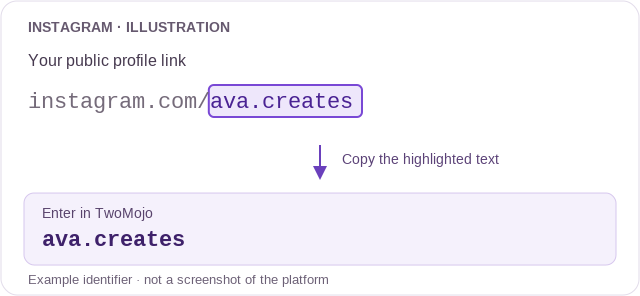
For instagram.com/yourname/, enter yourname. If your profile shows the
display name “Your Name”, use the username attached to its profile link instead.
Instagram help: update profile information
TikTok
Section titled “TikTok”- Open TikTok and tap Profile.
- Tap Edit profile, then find Username.
- Enter the username in TwoMojo, with or without
@. Use the username rather than the nickname.
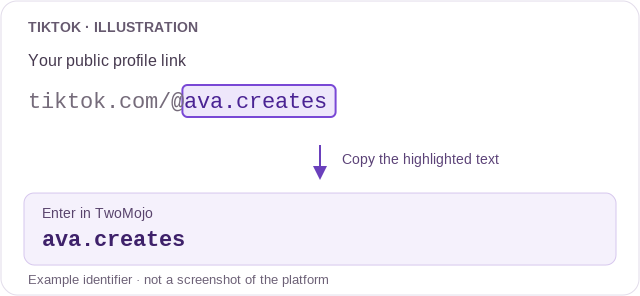
For tiktok.com/@yourname, enter yourname.
TikTok help: change your username
YouTube
Section titled “YouTube”- Sign in to YouTube and open your channel.
- Find the
@handlebelow the channel name. You can also visit youtube.com/handle. - Enter the handle in TwoMojo, with or without
@. TwoMojo labels this field YouTube username.
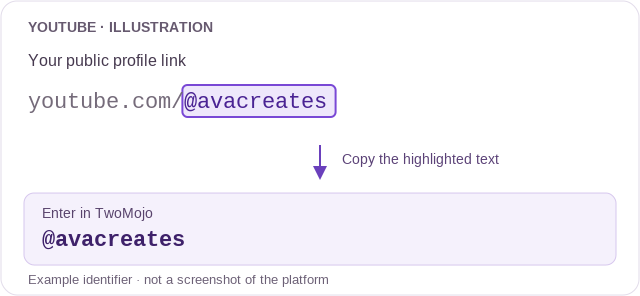
For youtube.com/@yourhandle, enter @yourhandle.
YouTube help: handles · YouTube help: channel URLs
Xiaohongshu
Section titled “Xiaohongshu”- Open Xiaohongshu and tap 我 (Me).
- Tap the share button at the top right, then Copy link.
- If you receive a short share link, open it in your browser. On the profile
page, find the address that includes
/user/profile/. - Copy the ID after
/user/profile/, stopping before any?or#, and enter it in TwoMojo. You can also paste the complete profile URL without tracking parameters.
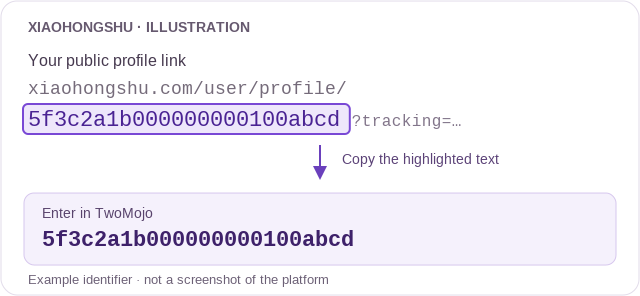
For xiaohongshu.com/user/profile/abc123, enter abc123. TwoMojo does not
follow short share links. If the shared URL does not resolve to a public profile,
check the link directly in Xiaohongshu before entering an ID.
Xiaohongshu: profile share-link instructions
Return to your setup
Section titled “Return to your setup”Return to the TwoMojo setup tab when you have the username or profile ID. Menu labels can vary between app versions. The annotations above are illustrative; the accompanying written steps give the values you need to copy.